
Table of Content
- The classic “ls on Windows” facepalm
- Bonus: Re-educate Cursor with
.cursorrules - When Cursor still insists on WSL
The classic “ls on Windows” facepalm
You ask Cursor to run a command.
You expect dir.
You get ls && grep thrown straight into a PowerShell tab that dies instantly.
This happens a lot because Cursor happily assumes a Unix-like shell exists and goes full penguin mode, even on a pure Windows machine. Many models were trained seeing bash, ls, rm -rf and friends, not Get-ChildItem and Remove-Item -Recurse. On top of that, the Agent sometimes prefers WSL or a Bash profile even when your interactive terminal is set to something else.
Good news: you can mostly beat it back into respecting Windows.
Step 1: Force Cursor to use the right shell
First fix: point Cursor at the shell you actually use. PowerShell, CMD, Git Bash, WSL… but pick one and make it the default.
From Cursor itself:
-
Hit
Ctrl + Shift + P. -
Type
Terminal: Select Default Profile. -
Choose
PowerShell,Command Prompt,Git Bash, or your WSL distro. -
Close all terminals, then restart Cursor.
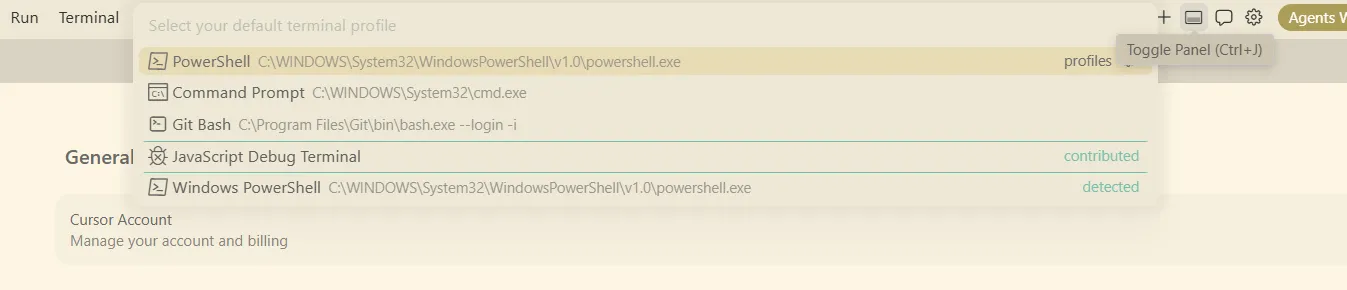
This changes the integrated terminal profile, which is also what the Agent usually tries to use. If you were stuck with commands failing because they were sent to the wrong shell, this alone often fixes the chaos.
Step 2: Hard-lock it in settings.json
If the UI behaves weirdly, go old school: edit the JSON.
-
Ctrl + Shift + P -
Preferences: Open User Settings (JSON)
Then add something like:
{

  "terminal.integrated.defaultProfile.windows": "PowerShell"

}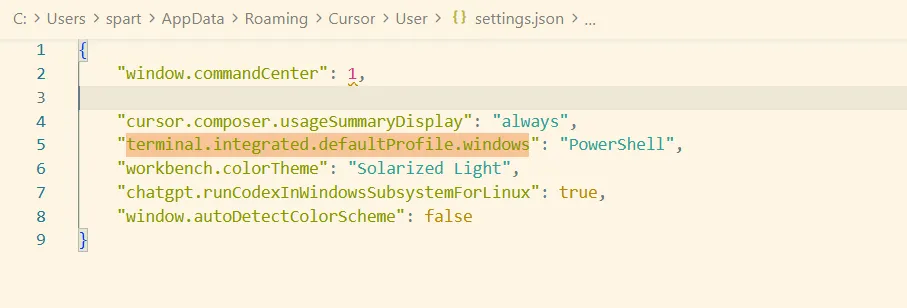
Swap "PowerShell" for "Command Prompt", "Git Bash", or "Ubuntu" if that’s your thing. Some users also define explicit profiles with paths to bash.exe or wsl.exe to keep Cursor from improvising its own idea of “Bash”.
Yes, it feels like fighting your editor with JSON. Welcome to 2026.
Step 3: Restart the Agent’s brain
Here’s the annoying part: even after you fix the terminal profile, the Agent can keep running commands in the old environment.
To purge its memory:
-
Close existing AI chats.
-
Close the app.
-
Restart Cursor.
-
Open a fresh Agent chat and try again.
People specifically reported cases where the UI terminal was fine, but the Agent kept firing stuff into WSL or a wrong shell until they restarted everything.
Bonus: Re-educate Cursor with .cursorrules
Changing the shell fixes where commands run.
.cursorrules fixes what commands it generates.
In your project root, create .cursorrules:
You are running on Windows.

Use PowerShell commands only.

Do not use bash, sh, zsh, or Linux syntax.
Cursor reads this and tends to stop spitting rm -rf into your PowerShell session like it’s on a MacBook. Several Windows folks report way fewer Linux-only commands after adding rules like this.
You can also set global rules in Cursor’s settings if all your projects are on Windows, but project-specific files are easier to keep sane.
When Cursor still insists on WSL
Even with all that, there are some open bugs:
-
Agent mode ignoring the selected terminal profile.
-
Commands magically going to WSL even though Git Bash or PowerShell is your default.
-
Agent probing WSL instead of actually running your command.
If you want WSL, you can lean into it (launch Cursor from WSL, configure WSL profiles, etc.). If you don’t, for now the combo that works best is:
-
Set the default profile explicitly to PowerShell or CMD.
-
Add strict
.cursorrulestelling it you’re on Windows. -
Restart Cursor + Agent whenever it “forgets”.
Not perfect. But at least your Windows box stops cosplaying as Ubuntu every time you ask for a simple command.